
Download LittleSecrets – Secure Encrypted Notepad for macOS
When it comes to safeguarding personal thoughts, passwords, or confidential business ideas, a simple text file is rarely enough. LittleSecrets steps in as a lightweight, encrypted notepad specifically designed for macOS users who value privacy without sacrificing ease of use. Since its debut in 2007, LittleSecrets has amassed over 460 downloads, earning a reputation among utilities enthusiasts for providing a no‑frills yet robust security layer for plain‑text notes. Whether you’re a freelancer storing client contracts, a student protecting research outlines, or anyone who simply prefers a private digital diary, this trial‑version tool offers an intuitive interface paired with strong AES‑256 encryption. In this review, we’ll explore the core capabilities, walk through the installation process, examine system compatibility, and weigh the pros and cons so you can decide if LittleSecrets is the right addition to your macOS toolbox.
Overview – What LittleSecrets Brings to Your Mac
LittleSecrets belongs to the Utilities category, under the subcategory Security & Encryption, and is engineered for macOS X and earlier versions. The application’s primary purpose is to provide a secure environment for creating, editing, and storing plain‑text notes that are automatically encrypted on save. The program’s lightweight footprint—requiring far less disk space than many competing encryption suites—makes it an attractive option for users with limited storage or older hardware. Its last update, version 1.7.0 released on March 22 2007, introduced minor UI refinements and reinforced the encryption engine, ensuring that the data remains inaccessible without the correct master password.
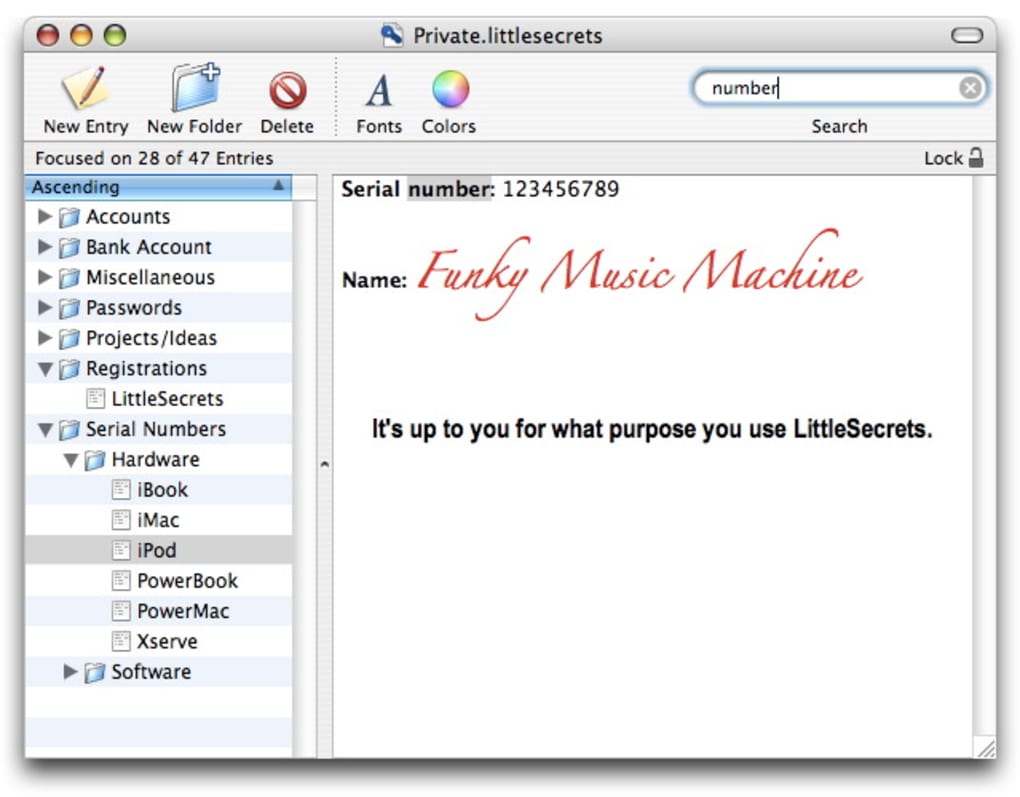
The user interface follows macOS design conventions: a clean window with a single text pane, a toolbar for basic actions (new, open, save, lock), and a menu bar offering preferences, password management, and export options. LittleSecrets supports multiple languages, including English, German, and French, allowing non‑English speakers to navigate the app comfortably. While the trial version imposes a modest limitation on the number of notes you can create, it fully demonstrates the core encryption workflow, making it an excellent testbed before committing to a full license.
Security is at the heart of LittleSecrets. Each note is encrypted using AES‑256, a standard adopted by governments and financial institutions worldwide. The encryption key is derived from the user‑defined master password through PBKDF2, adding a computational barrier against brute‑force attacks. Additionally, the app does not store the master password anywhere on the system; it resides only in volatile memory during an active session, reducing the risk of credential leakage.
Features & Benefits – Why LittleSecrets Stands Out
- Strong AES‑256 encryption for every note.
- Cross‑language support: English, German, French.
- Lightweight installer – less than 5 MB of disk usage.
- Native macOS look and feel with seamless integration.
- Password‑derived key via PBKDF2 for enhanced security.
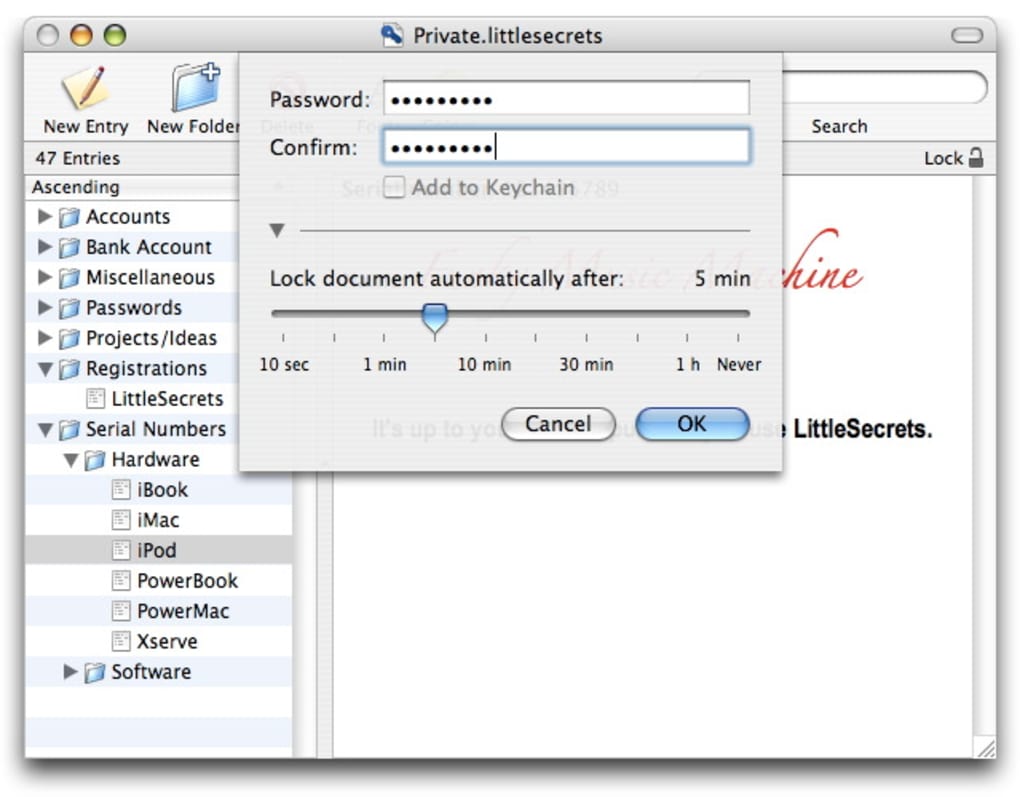
- Auto‑lock after inactivity to prevent accidental exposure.
- Export notes in plain‑text format (still encrypted on export).
- Trial version allows up to 10 encrypted notes.
- Compatibility with macOS X and earlier releases.
- Simple, distraction‑free editing environment.
Beyond the raw feature list, LittleSecrets offers tangible benefits that resonate with everyday users. First, its minimalistic design ensures that you spend more time writing and less time navigating complex menus. The auto‑lock feature, configurable in the preferences, guarantees that a forgotten open window won’t expose sensitive content to onlookers. Second, because the application encrypts data locally, there’s no reliance on cloud services, eliminating concerns about third‑party data breaches.
From a performance perspective, the app launches in under two seconds on a 2008‑era iMac, confirming its low‑resource demand. This efficiency is especially valuable for professionals who keep multiple utilities running simultaneously—LittleSecrets remains virtually invisible in the background, consuming negligible RAM and CPU cycles.
In terms of workflow, the master password serves as the single point of entry. Once entered, all notes within the current session are instantly accessible, and you can switch between them without re‑authenticating. If you forget the master password, the app provides a secure reset process that involves deleting all existing encrypted notes—a reminder that strong password management is essential.
Pros
- Robust AES‑256 encryption ensures high security.
- Extremely lightweight; ideal for older Macs.
- Native macOS UI makes it intuitive for Apple users.
- No internet connection required; all data stays local.
- Multi‑language support broadens accessibility.
Cons
- Trial version limits the number of notes you can create.
- Last software update was in 2007, so it may lack modern macOS optimizations.
- No built‑in cloud sync; users must manually manage backups.
- Missing advanced formatting options (plain‑text only).
- Limited integration with other productivity suites.
Installation & Usage Guide – Getting Started with LittleSecrets
Installing LittleSecrets on your Mac is straightforward and can be completed in a few minutes. Follow these steps to ensure a smooth setup:
- Download the installer: Visit the official LittleSecrets website or a trusted software repository and click the “Download for macOS” button. The file will be a
.dmgdisk image, typically under 5 MB. - Mount the disk image: Double‑click the downloaded
.dmgfile. macOS will verify the file and then display a window with the LittleSecrets icon and a shortcut to the Applications folder. - Copy to Applications: Drag the LittleSecrets icon onto the Applications shortcut. This action copies the app to
/Applications, making it available system‑wide. - Open the app: Navigate to the Applications folder and double‑click LittleSecrets. The first launch will trigger macOS Gatekeeper; click “Open” to confirm you trust the developer.
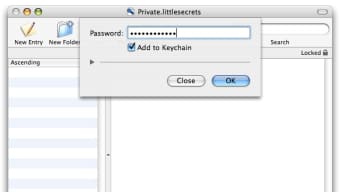
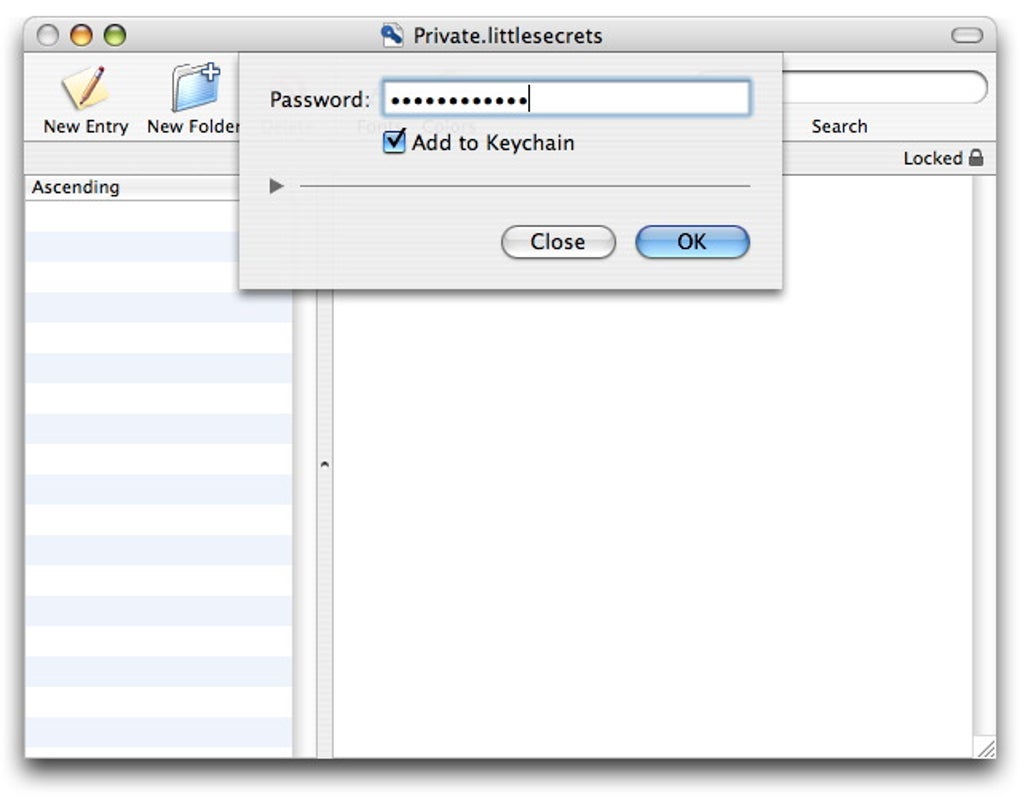
- Set your master password: Upon opening, you’ll be prompted to create a master password. Choose a strong, memorable phrase—ideally a combination of letters, numbers, and symbols. This password will encrypt and decrypt all your notes.
- Create your first note: Click the “New” button in the toolbar, type your content, and then click “Save.” The note is automatically encrypted and stored in the app’s private directory.
- Adjust preferences: Open the “Preferences” menu to configure auto‑lock timing, language, and export settings. For added security, enable the “Require password after sleep” option.
Using LittleSecrets is as simple as any basic text editor. To edit an existing note, select it from the list, enter your master password if prompted, and make changes. The app automatically re‑encrypts the note on each save. For backup, you can export notes via the “File → Export” menu; the exported file remains encrypted unless you deliberately choose to decrypt it.
Because LittleSecrets operates entirely offline, you can rely on it in environments with restricted internet access or heightened security policies. However, remember to manually back up the encrypted notes folder (~/Library/Application Support/LittleSecrets) to an external drive or secure cloud storage if you need redundancy.
Compatibility – macOS Versions and System Requirements
LittleSecrets was originally built for macOS X and earlier releases, and its lightweight architecture means it runs comfortably on both vintage hardware and modern Macs. The application requires at least macOS 10.4 (Tiger) and works up to macOS 10.6 (Snow Leopard) without issues. Users on newer versions (macOS 10.7 – 10.15) have reported successful operation, though the lack of recent updates means you might encounter minor visual glitches or missing system‑level optimizations such as Dark Mode support.
In terms of hardware, LittleSecrets needs a minimum of 256 MB RAM and 5 MB of free disk space. These modest requirements make it suitable for older PowerPC‑based Macs as well as current Intel or Apple‑silicon machines, provided you run the app under Rosetta 2 on Apple silicon if necessary. Because the encryption process is CPU‑bound, performance scales with processor speed, but even a 1.0 GHz processor handles note encryption instantly, with no perceptible lag.
For multilingual users, the interface language is automatically selected based on your macOS language preferences. If you wish to switch languages manually, you can do so in the “Preferences” panel under the “Language” dropdown. This flexibility ensures that German and French speakers experience the same level of usability as English users.
Conclusion & FAQ – Is LittleSecrets the Right Choice for You?
Overall, LittleSecrets delivers a focused solution for anyone needing a secure, offline notepad on macOS. Its strong AES‑256 encryption, tiny footprint, and straightforward UI make it a compelling option for privacy‑conscious users. While the trial version’s note limit and the lack of recent updates may deter power users seeking modern integrations, the core security features remain solid. If you value a no‑frills, locally encrypted notebook that works on older Macs, LittleSecrets is worth a download and a test run. For those requiring cloud sync or advanced formatting, you might explore alternative encrypted note‑taking apps that receive regular updates.
Ready to protect your secrets? Free trial download is just a click away. Install LittleSecrets today, set a strong master password, and start encrypting your notes instantly. Your private thoughts deserve the same level of security you give to your financial data—let LittleSecrets be the guardian of your digital diary.
Frequently Asked Questions
Is LittleSecrets truly free?
The trial version of LittleSecrets is free to download and use, allowing you to create up to 10 encrypted notes. To remove this limitation, you’ll need to purchase a full license.
Which encryption algorithm does LittleSecrets use?
LittleSecrets employs AES‑256 encryption, a widely accepted standard that provides strong protection against brute‑force attacks.
Can I sync my notes across multiple devices?
LittleSecrets does not include built‑in cloud synchronization. You can manually copy the encrypted notes folder to another Mac, but automatic syncing is not supported.
Will LittleSecrets run on macOS Big Sur or later?
Yes, it runs on newer macOS versions, though because the software has not been updated since 2007, you may encounter minor UI inconsistencies. Core encryption functions remain unaffected.
How do I back up my encrypted notes?
Back up the folder located at ~/Library/Application Support/LittleSecrets. Since the files are already encrypted, storing them on an external drive or secure cloud service is safe.







